ClosingSite SoftPro Add-in
Requirements:
- Administrative access – must have the access rights to run software installations on the computer.
- SoftPro Select Client installed on the computer.
- CLOSE SOFTPRO SELECTS BEFORE INSTALLING OR UPDATING.
New Installation:
- Download the installation program.
- https://www.closingsite.com/Files/SoftPro/ClosingSiteSoftProAddinInstall.exe
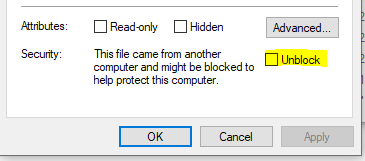
- When the download completes, right click the ClosingSiteSoftProAddinInstall.exe in the downloads folder and select “Properties.”
- If there is a checkbox for “Unblock”. Check “Unblock” and click “Ok”.
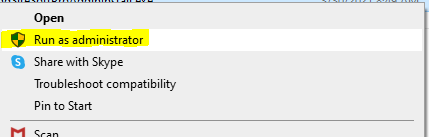
- Right Click ClosingSiteSoftProAddinInstall.exe in your downloads folder and select Run as Administrator. If a message displays “Do you want to allow this app to make changes to your device”, Click “Yes”.
- The installer will unzip to C:\_ClosingSiteSoftProAddinTemp and automatically run the installation program C:\_ClosingSiteSoftProAddinTemp\ClosingSiteSoftProAddin.exe.
- Click the “Install ClosingSite SoftPro Addin” button. By default, the installer will create backup of the C:\Program Files (x86)\SoftPro\Select folder in the C:\_ClosingSiteSoftProAddinTemp directory
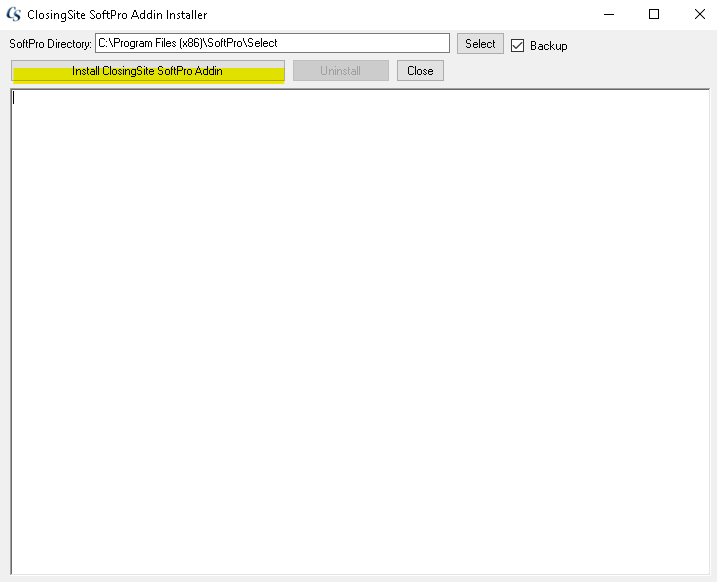
- Once the Installation completes a message box will display “Install Complete – Open SoftPro to complete setup”. Close the Installation window.
- Open SoftPro Select. In the menu click “ClosingSite” and then click “ClosingSite Tools”
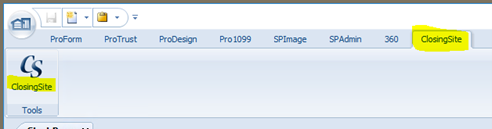
- Click “Account Settings” in the toolbar

- Enter the Website URL, Username and Password that you have been provided and click “Verify Account”
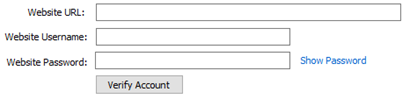
- Verify Account will display “User Login Valid” if your settings are correct. If you are not able to login, recheck the settings or call support 888-590-0999 ext 2.
- Use the “Click To Enable” to select the Addin Features you wish to turn on. Note, the feature list will vary.
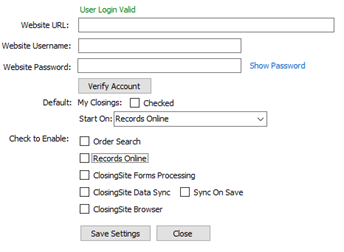
- Click “Save Settings”